Manage IT requests and company equipment in one workspace.
Give staff a service desk, keep track of equipment, or subscribe to both.
Create your workspace
See OpsQuay in action
Explore the pilot with sample company data before creating your workspace.
Service Desk screenshot
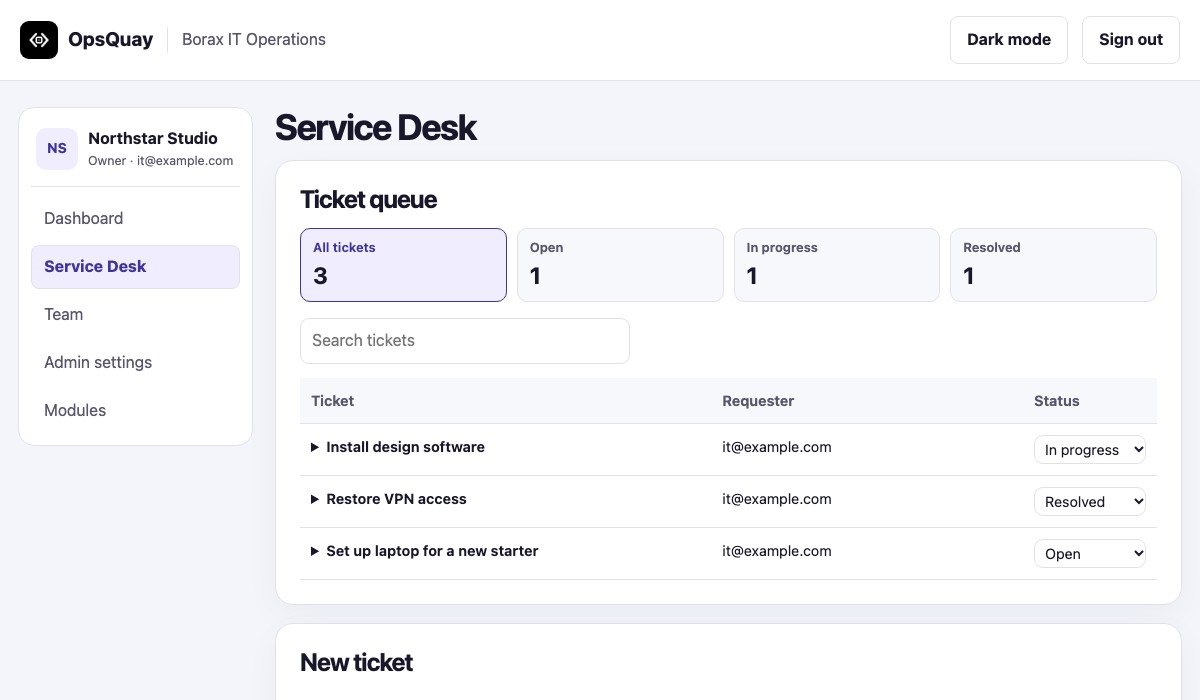
20-second walkthrough
Read the walkthrough
- The dashboard shows activity for the modules you can access.
- Service Desk shows open, in-progress and resolved requests in one searchable queue.
- Asset Management records equipment, asset tags and who has each item.
- Email Borax about the modules you need and discuss payment terms.
- After activation, use Admin settings to add a logo and update the company display name.
Tell us what your team needs
Email Borax with the workflows you’re looking for. We’ll share the modules we have and discuss what fits your company.
Email Borax- Review your quote. Borax shares pricing, currency, billing frequency, the payment due date, and renewal and cancellation terms.
- Agree before invoicing. Once both sides agree on the terms, Borax issues the invoice.
- Get access. Borax activates the modules after payment is confirmed. Your admins can then add company branding and invite staff.